Essential reading for in-house SEs! Operational methods and precautions to avoid conflicts when editing simultaneously in Google Drive
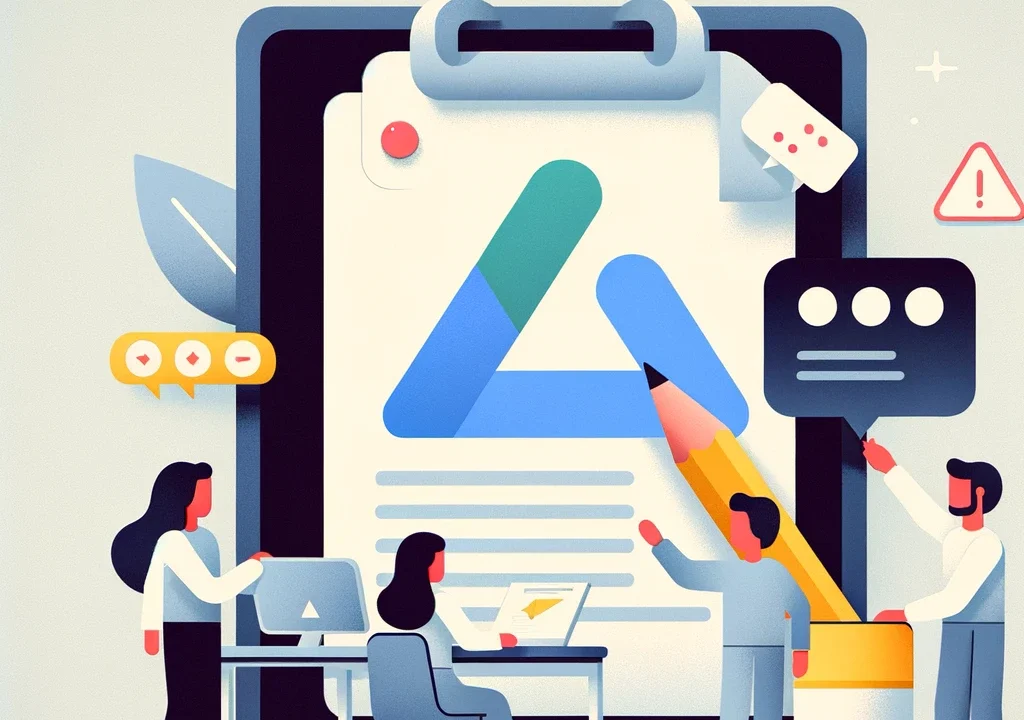
Google Drive is a powerful tool that facilitates file sharing and collaboration in business environments. In particular, for in-house system engineers (SEs), it is an important resource for improving team efficiency. However, caution is required when multiple users edit files simultaneously.
In this article, we will подробно explain everything from the basic overview of Google Drive to how to operate it in a browser and on desktop, as well as how to handle conflicts when they occur.
What is Google Drive?
Google Drive is a cloud storage service provided by Google that allows you to store files and folders online and access them from anywhere. It also integrates with office tools such as Google Docs, Sheets, and Slides, enabling real-time collaboration.
How to use it in a browser
When you access Google Drive from a browser, all files and folders are displayed. You can perform various operations such as creating new files, uploading existing files, and changing sharing settings. In sharing settings, you can grant specific users editing or viewing permissions.
Desktop installation and usage
By installing Google Drive on your desktop, you can synchronize local files with files in the cloud. This makes file backup and offline work easier. After installation, files in the specified folders are automatically uploaded to Google Drive and synchronized across other devices.
Advantages
- Accessibility:
Since it can be accessed from anywhere, work can be done remotely or while on the go. - Collaboration:
Multiple users can collaborate in real time, improving productivity. - Backup:
Since files are stored in the cloud, the risk of data loss is reduced.
Points to note
- Occurrence of conflicts:
If multiple users edit the same file simultaneously, conflicts may occur. - Synchronization delays:
Depending on file size and network conditions, synchronization may take time. - Security:
Since data is stored in the cloud, appropriate security measures are required.
How to handle conflicts
Operations in the browser
When multiple users edit a file simultaneously in the browser, Google Drive attempts to merge changes in real time. If a conflict occurs, the change made by the user who last edited the cell takes priority. You can check the revision history and revert to a previous version if necessary.
Operations on desktop
When Google Drive is installed on the desktop, for example, if multiple users edit the same Excel file stored locally at the same time, the following typically happens:
- File synchronization:When a user edits and saves a file, the changes are synchronized to Google Drive. However, if multiple users make different changes at the same time, conflicts may occur.
- Conflict resolution:If a conflict occurs, Google Drive usually handles it in one of the following ways:
- Automatic merge:If changes are made to different cells, Google Drive merges the changes into a single file.
- Creation of conflict files:If changes to the same cell conflict, Google Drive may create a new file called a “conflict file” separate from the original file. This conflict file contains changes made by different users.
- Manual resolution by the user:If a conflict file is created, users need to manually review these files, integrate the necessary changes, and create the final file.
Finally
Google Drive is widely adopted by many companies due to its convenience and functionality, but caution is required because conflicts may occur when multiple users edit simultaneously. By setting appropriate sharing settings and security measures, and understanding how to handle conflicts, smooth teamwork and efficient file management can be achieved. As an in-house SE, share this knowledge and aim for safe and effective operation of Google Drive.
*Please use this information at your own discretion.*