moment.js made easy! Methods and examples for handling dates and times in JavaScript
Using moment.js, a useful library for manipulating dates and times in JavaScript, you can easily perform complex date/time operations.
This time, we will introduce how to display dates and times using moment.js.
CSS Style Settings
First, set up the page styles for displaying the date and time. Use the following CSS code to format the appearance of the page.
<style>
body {
  font-size: 18px;
  text-align: center;
  line-height: 1.8em;
}
h1{
  text-align: center;
  font-size: 20px;
  line-height: 1.6em;
  padding: 20px 0;
}
h2{
  text-align: center;
  font-size: 20px;
  padding-top: 20px;
}
p{
  padding-bottom: 20px;
}
</style>
Displaying Date and Time with JavaScript
Next, here is the JavaScript code for displaying dates and times using moment.js. Load the moment.js file.
By writing as shown below, you can easily perform the specified date/time operations.
- moment().format(‘date format’)
- Displaying relative time: The code below displays the relative time from the current time.
moment(“relative time”, “date format”).fromNow() - Displaying calendar time: The code below displays dates and times a few days before or after the current date.
moment().subtract(number of days before, ‘days’).calendar()
The content after each date/time operation is displayed using document.write().
<script src="moment.js"></script>
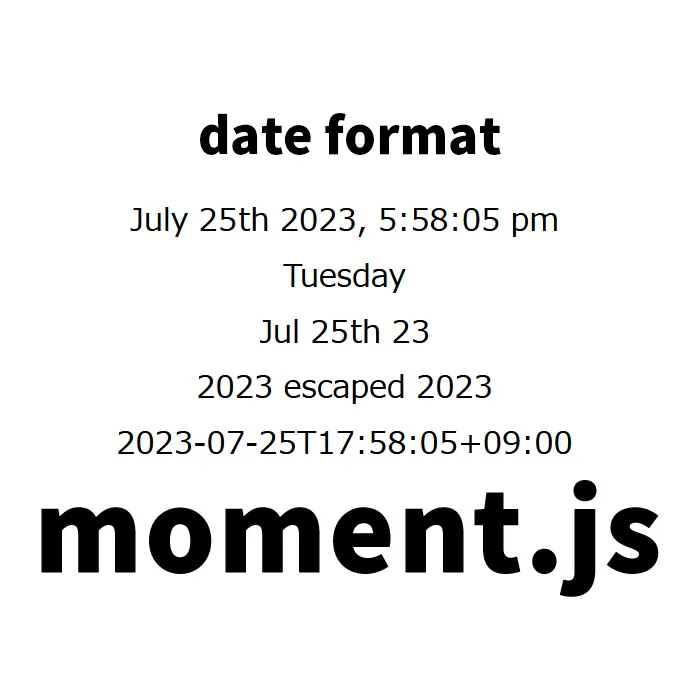
<h2>Date Format</h2>
<script>
var m = moment().format('MMMM Do YYYY, h:mm:ss a'); // July 25th 2023, 5:28:31 pm
document.write(m);
</script>
<br>

<script>
var m = moment().format('dddd');    // Tuesday
document.write(m);
</script>
<br>

<script>
var m = moment().format("MMM Do YY");   // Jul 25th 23
document.write(m);
</script>
<br>

<script>
var m = moment().format('YYYY [escaped] YYYY'); // 2023 escaped 2023
document.write(m);
</script>
<br>

<script>
var m = moment().format();  // 2023-07-25T17:35:13+09:00
document.write(m);
</script>
<br>


<h2>Relative Time</h2>
<script>
var m = moment("20111031", "YYYYMMDD").fromNow();   // 12 years ago
document.write(m);
</script>
<br>

<script>
var m = moment("20120620", "YYYYMMDD").fromNow();   // 11 years ago
document.write(m);
</script>
<br>

<script>
var m = moment().startOf('day').fromNow();  // 18 hours ago
document.write(m);
</script>
<br>

<script>
var m = moment().endOf('day').fromNow();    // in 6 hours
document.write(m);
</script>
<br>

<script>
var m = moment().startOf('hour').fromNow(); // 38 minutes ago
document.write(m);
</script>
<br>


<h2>Calendar Time</h2>
<script>
var m = moment().subtract(10, 'days').calendar();   // 07/15/2023
document.write(m);
</script>
<br>

<script>
var m = moment().subtract(6, 'days').calendar();    // Last Wednesday at 5:40 PM
document.write(m);
</script>
<br>

<script>
var m = moment().subtract(3, 'days').calendar();    // Last Saturday at 5:40 PM
document.write(m);
</script>
<br>

<script>
var m = moment().subtract(1, 'days').calendar();    // Yesterday at 5:40 PM
document.write(m);
</script>
<br>

<script>
var m = moment().calendar();    // Today at 5:40 PM
document.write(m);
</script>
<br>

<script>
var m = moment().add(1, 'days').calendar(); // Tomorrow at 5:40 PM
document.write(m);
</script>
<br>

<script>
var m = moment().add(3, 'days').calendar(); // Friday at 5:40 PM
document.write(m);
</script>
<br>

<script>
var m = moment().add(10, 'days').calendar();    // 08/04/2023
document.write(m);
</script>
<br>
Demo Page for Easily Displaying Date and Time Processing with moment.js
You can check the actual working demo page from the link below.
Take a look to see how date/time processing is performed using moment.js.
Demo page for easily displaying date and time processing with moment.js
Source: Moment.js
Summary
By using moment.js, you can manipulate dates and times more easily and flexibly than with JavaScript’s standard Date object.
It is especially useful when complex formatting or displaying relative time is required.
Please feel free to refer to the methods introduced here and try using moment.js in your own projects.
※If you reuse the content, please do so at your own responsibility.
Please do not reuse the Google Analytics tag inside the demo page head tag.