jquery.rwdImageMaps.js and How to Create a Clickable Map with Responsive Design
This article explains how to use jquery.rwdImageMaps.js to make image map tags (clickable maps) responsive with automatic adjustments.
This allows you to provide an appropriate interactive experience regardless of the device your users are using.
Introduction
In web design, you may use the map tag to make parts of an image clickable. However, traditional map tags may not function accurately when the device screen size changes. Here, we explain how to make image maps responsive using jquery.rwdImageMaps.js.
CSS Settings
First, configure the CSS for the image (img[usemap]) that uses the map tag. Modify the styles below as needed.
<style>
body {
  font-size: 18px;
  text-align: center;
  line-height: 1.8em;
}
h1{
  text-align: center;
  font-size: 20px;
  line-height: 1.6em;
  padding: 20px 0;
}
p{
  padding-bottom: 10px;
}
img[usemap] {
  border: none;
  height: auto;
  max-width: 100%;
  width: auto;
}
</style>
This CSS ensures that the image becomes responsive and displays properly across various screen sizes.
HTML Settings
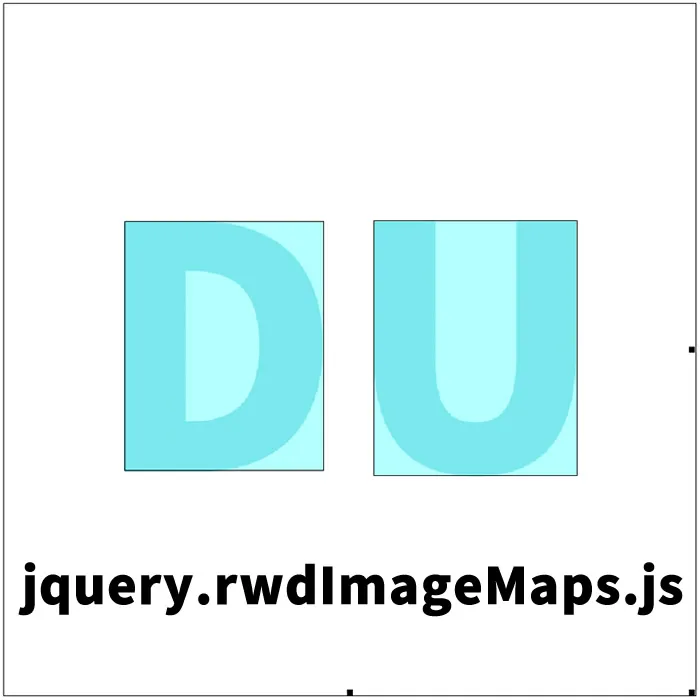
Next, write the HTML code. In this example, we prepare an image (logo1.jpg) that uses a map tag and set map areas on the letters “D” and “U” in the image. Set the text for each area tag in the alt attribute, which will be shown in a message when clicked.
<h1>Making an image map (clickable map) responsive with automatic adjustment using jquery.rwdImageMaps.js.</h1>
<p>The letters “D” and “U” in the image below have map tags (clickable maps) set.<br>When you click “D” and “U”, the text set in each alt attribute will appear in an alert message.<br>Resize your browser window and try clicking them.</p>

<img src="logo1.jpg" usemap="#logo" alt="" />
<map name="logo">
  <area shape="rect" coords="131,236,347,506" href="./" alt="You clicked 'D'.">
  <area shape="rect" coords="401,235,622,512" href="./" alt="You clicked 'U'.">
</map>
With these settings, you can make specific parts of the image clickable and display a message when clicked.
JavaScript Settings
Finally, load the necessary JavaScript files — jquery.min.js (v1.10.2) and jquery.rwdImageMaps.min.js — and apply $(‘image area’).rwdImageMaps().
Add a process that displays an alert message using the text set in the alt attribute when each area in the map tag is clicked.
<script src="jquery.min.js"></script>
<script src="jquery.rwdImageMaps.min.js"></script>
<script>
$(document).ready(function(e) {
  $('img[usemap]').rwdImageMaps();

  $('area').on('click', function() {
    alert($(this).attr('alt') + ' clicked');
  });
});
</script>
This script makes the image map responsive and displays the specified message when each area is clicked.
Demo Page: Responsive Image Map Using jquery.rwdImageMaps.js
A working demo page is also available. You can check it from the link below.
Demo Page Using jquery.rwdImageMaps.js to Make Image Map Tags Responsive
Source: jQuery-rwdImageMaps
Conclusion
Using jquery.rwdImageMaps.js makes it easy to make image map tags responsive. This enables a consistent interactive experience across various devices and improves user experience. Please try incorporating this method into your own project.
*If you reuse this code, please do so at your own risk.
Do not reuse the Google Analytics tag in the demo page head tag.*